I Tried Salesforce's Metadata Grounding MCP Server (Beta)
Salesforce has a hosted MCP server in Beta called Metadata Grounding, and I spent this afternoon, November 19, 2026, turning it on in a Developer Edition org, connecting it to Claude, and then checking every answer it gave me against the org itself. This post walks through what it is, the exact steps I took, what came back, where it matched the org and where it did not, and where I think it actually helps.
Understanding Metadata Grounding
MCP, the Model Context Protocol, is the standard way an AI assistant like Claude connects to outside tools and data. Metadata Grounding is an MCP server that Salesforce hosts for you. You turn it on in your org, connect your AI assistant to it, and the assistant can read your org's setup metadata: objects, fields, flows, permission sets, validation rules, record types, profiles, sharing rules and so on.
The key word there is metadata. It reads how your org is built, not the records inside it. There is no tool for SOQL queries and no tool for reading Leads, Accounts or any other data. It is powered by Salesforce Catalog, which indexes your org's metadata, and that is why Catalog has to be on first.
Setting It Up
Here are the steps in the order I did them.
Turning On the Salesforce Catalog
In the main Setup menu (not Data Cloud Setup), use Quick Find to open Feature Manager. Next to Salesforce Catalog, click Enable, accept the terms, and confirm. Salesforce Help says the initial full sync usually takes about an hour, and the Metadata Grounding MCP server is available after that sync finishes. Help also notes Catalog is not billed in Developer Edition orgs.
Waiting for the Sync
When I tried to activate the server before the sync was done, the activation came back with a FUNCTIONALITY_NOT_ENABLED error. After the sync, it worked.
Activating the MCP Server
In Setup, use Quick Find to open MCP Servers and activate Metadata Grounding. (If you script your setup, the same switch is a Tooling API object called McpServerAccess. With the Salesforce CLI that means sf data create record --use-tooling-api -s McpServerAccess. Leave off --use-tooling-api and you get a NOT_FOUND error that looks like a feature problem but is really just the wrong API.)
Creating an External Client App
Create an External Client App for the connection. Mine requires PKCE, has the client secret set to optional, has the MCP scope and the refresh token scope, and uses https://claude.ai/api/mcp/auth_callback as the callback URL. You will need its consumer key in the connector step.
Copying the Server URL
On the MCP Servers page, open Metadata Grounding and use Copy Server URL. It has the form https://api.salesforce.com/platform/mcp/v1/d/<your My Domain prefix>/develop/platform/metadata-grounding. Copy it from Setup rather than building it by hand, because the gateway returns the same 401 error for a real path and a made-up one, so guessing tells you nothing.
Adding a Custom Connector in claude.ai
- In claude.ai, open Customize, then Connectors.
- Click Add custom connector.
- Give the connector a name, for example Metadata Grounding, and paste the server URL you copied from Setup.
- claude.ai checks the server. When I did this, it said it couldn't determine how the server signs in. Choose Continue anyway.
- Under Authentication, choose Sign in now.
- Under OAuth client, choose Use your own OAuth client. Paste the External Client App's consumer key into OAuth client ID and leave OAuth client secret (optional) blank.
- Continue. Salesforce opens its Allow Access page. Click Allow.
- Back in claude.ai, the connector shows Connected. The whole connector step took me about three minutes.
A small tip: the tools only showed up in Claude Code sessions I started after the connector was connected. A session that was already open did not pick them up.
Using the Three Tools
The server lists three tools, and they are designed to be used together.
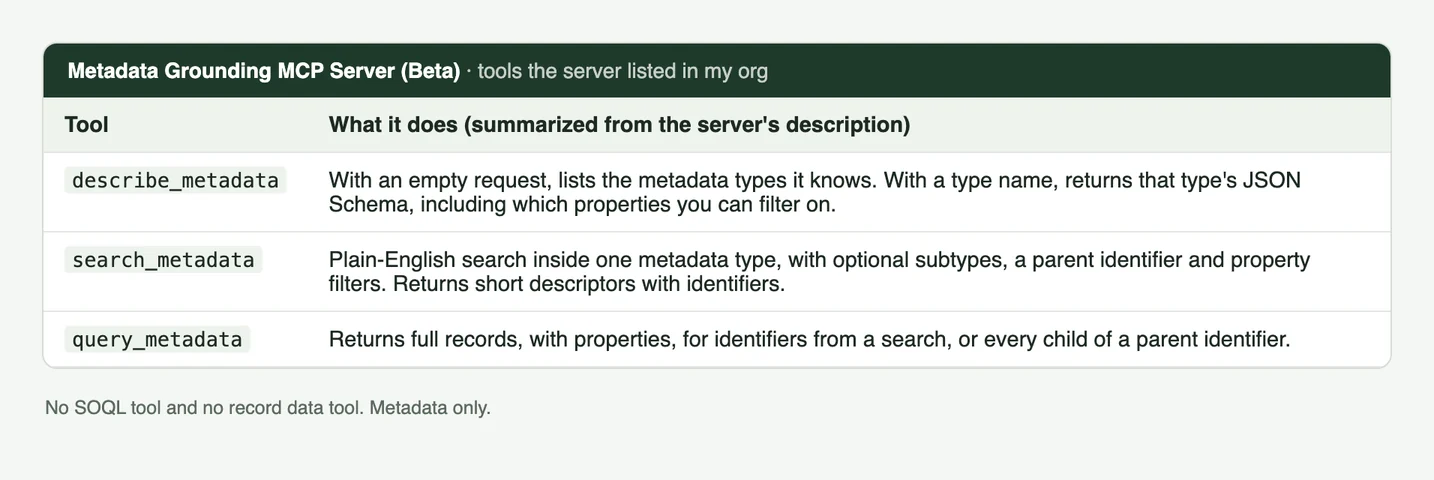
describe_metadata tells you what you can ask about. Called with an empty request, it gave me a catalog of about 80 metadata types, things like ApexClass, Flow, SObject, SObjectField, PermissionSet, ValidationRule, RecordType, Profile, SharingRule and UserRole. Called with a type name like Flow, it returned that type's schema, including which properties are filterable. For Flow those were createdByName, isActive, processType, status, triggerObject and triggerType.
search_metadata finds things inside a single type, and query_metadata pulls the full details once you have an identifier.
Asking Questions and Reviewing the Answers
All of my calls were read-only. Here is what I tried.
- Searching objects for "Lead" put Lead first, followed by LeadCleanInfo, MessagingEndUser, CampaignMember and MessagingSession.
- Querying the Lead object returned its sharing model (ReadWriteTransfer), its external sharing model (Private), and three record type ids.
- Querying Lead.Status and Lead.Rating returned both as picklists, with Status required and Rating optional.
- Querying everything under Lead as the parent returned 68 field records.
- Searching for flows with the property filter triggerObject set to Lead returned zero results.
The biggest lesson came from search. When I searched fields for "fields that track lead qualification" with no parent filter, I got 15 results and none of them were on Lead. The word "track" seemed to win, and I got things like tracking number fields on Shipment and Opportunity. When I searched for "lead qualification status rating" with Lead set as the parent, every result was a real Lead field.
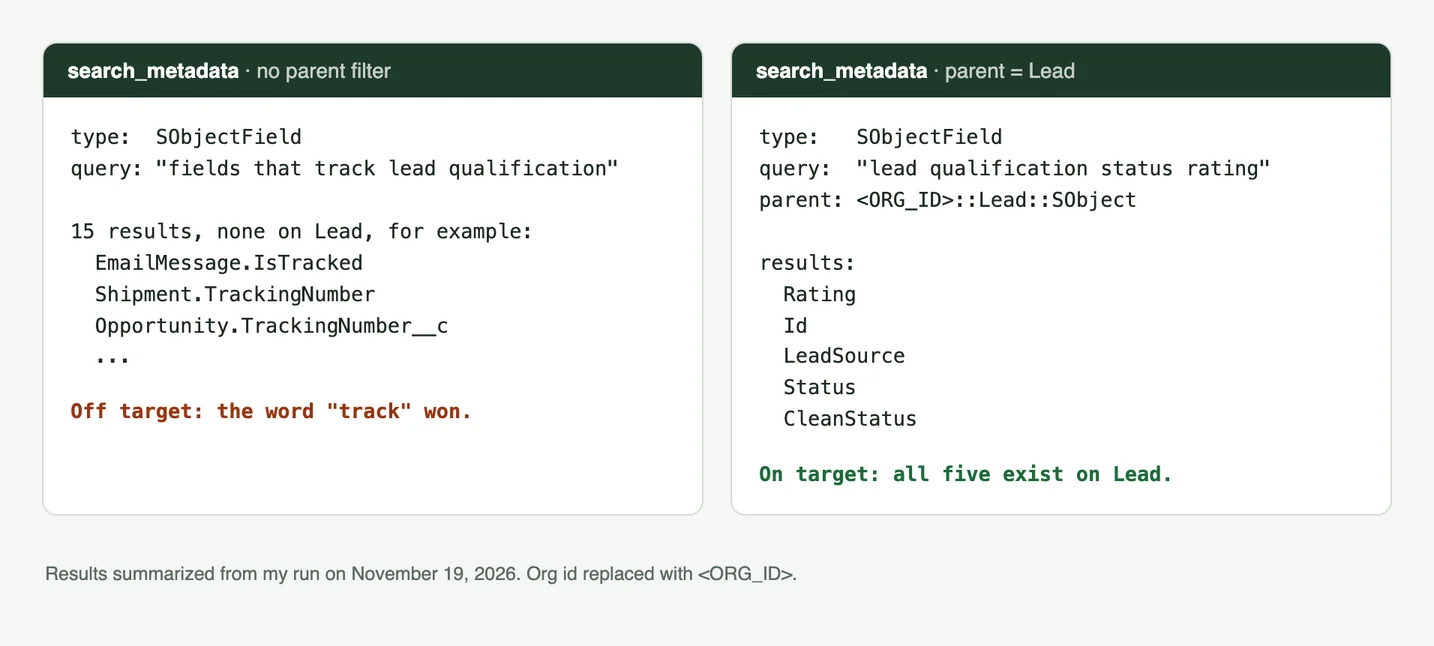
The same thing happened with flows. Asking for "flows that run on Lead" with no filter gave me 15 packaged standard flows for things like appointment booking and field service, none of them triggered by Lead. Adding the triggerObject filter gave the right answer, which was none.
Here is part of what a query actually returns, for the Lead Status field.
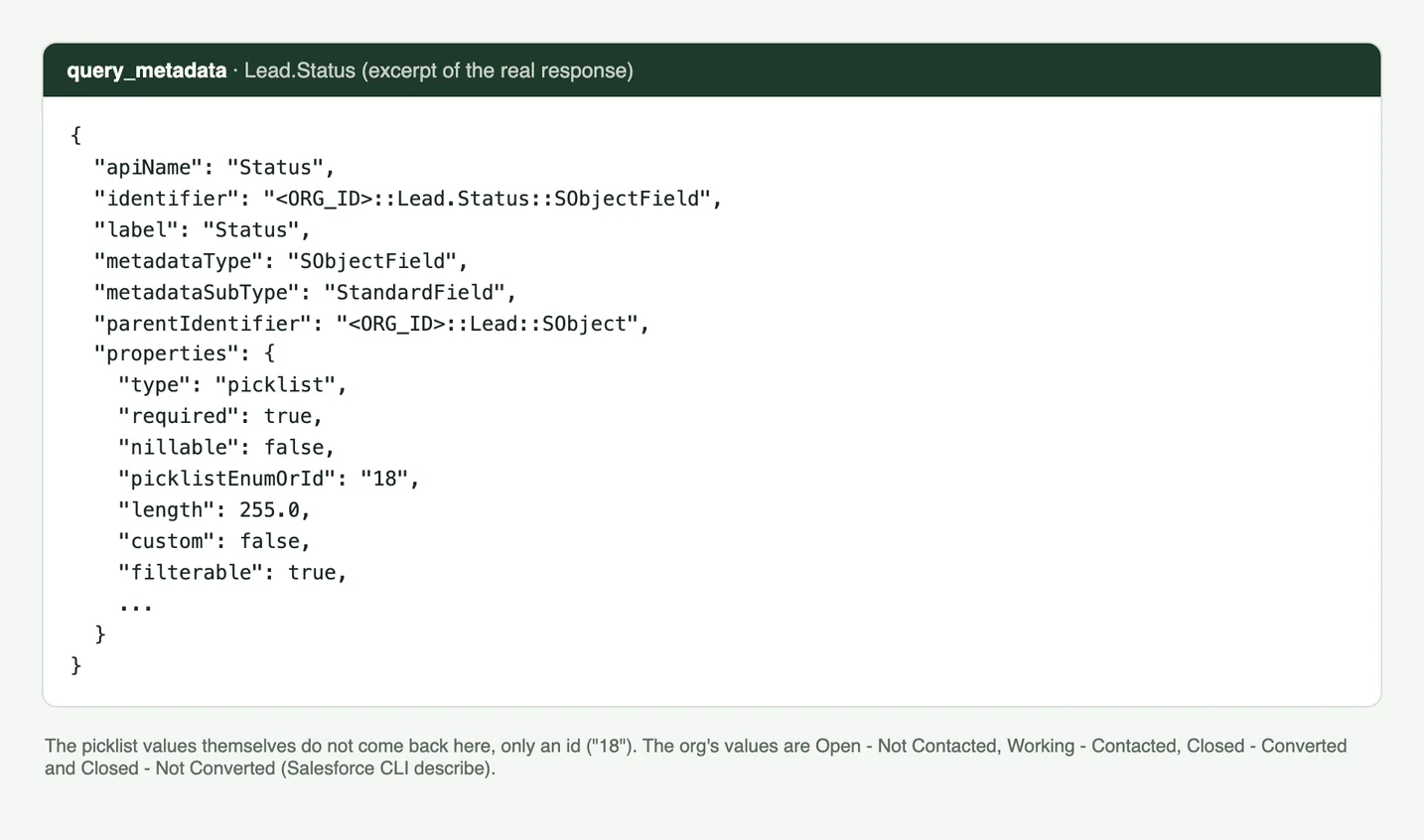
Notice that the picklist values are not in there. You get an id, "18", instead of Open - Not Contacted, Working - Contacted and so on.
Checking It Against the Org
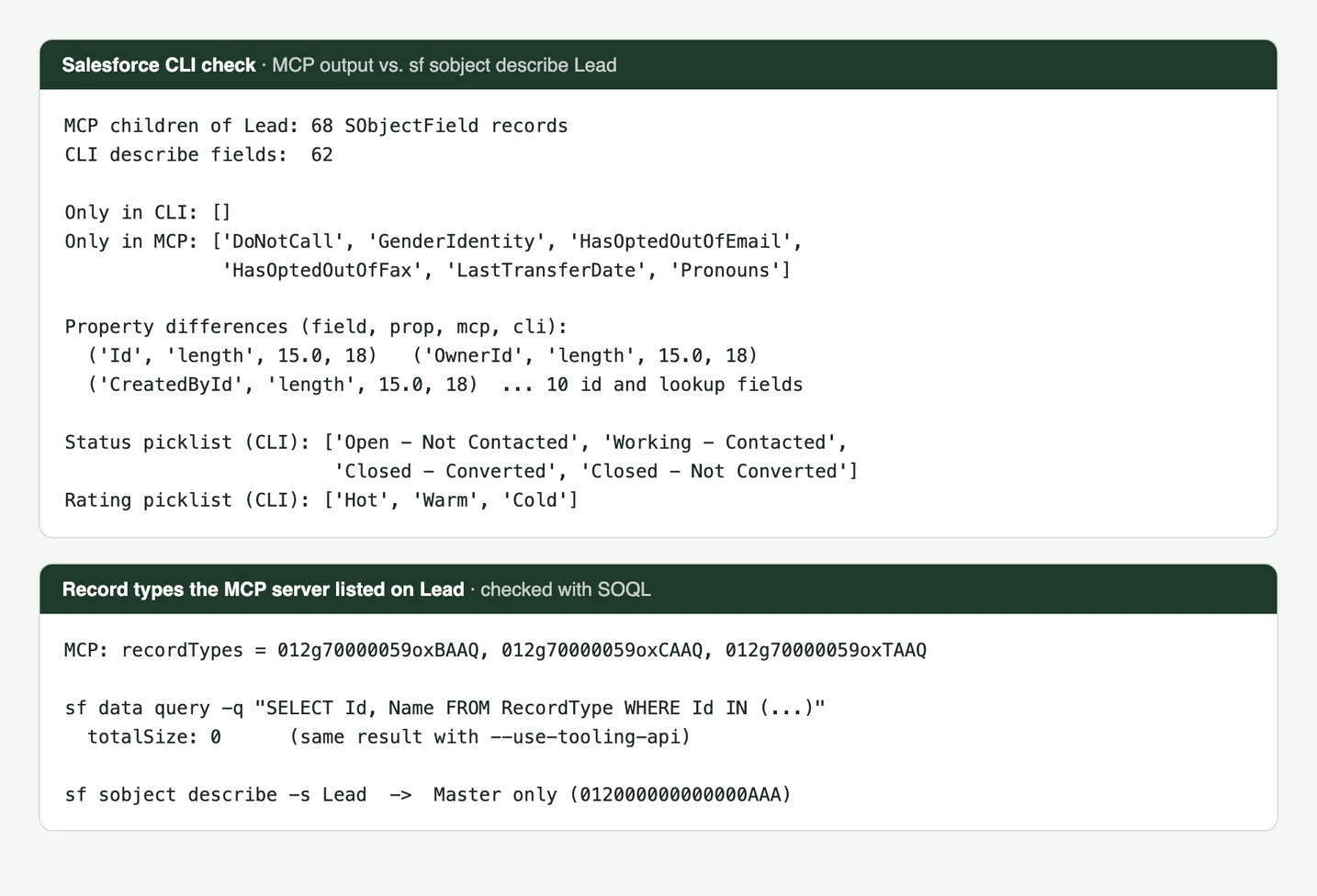
I compared the answers to the org with the Salesforce CLI, signed in as the System Administrator user. I ran sf sobject describe on Lead, SOQL and Tooling API queries for the record types, and a query on FlowDefinitionView for triggered flows. Then a short script compared the 68 field records from the MCP server to the 62 fields in the CLI describe, field by field.
Finding What Matched
- The Lead sharing model and external sharing model matched the Tooling API.
- All 62 fields in the CLI describe were in the MCP results, and for all of them, the type, nullability, custom flag and length matched, apart from the id length note below.
- Lead Status and Rating had the same types and the same required or optional settings.
- "No flow triggers on Lead" was right. FlowDefinitionView showed 17 triggered flows in the org, and none of them were on Lead.
Finding What Did Not Match
- Record types. The MCP server listed three record type ids on Lead. The org doesn't have them. The CLI describe shows only the Master record type, and SOQL and Tooling API queries for those three ids returned zero rows. I don't know why yet. It might be record types the Beta catalog indexes that aren't visible through the API, but I haven't verified that.
- Six extra fields. The MCP server showed six Lead fields that the admin user's describe did not: DoNotCall, GenderIdentity, HasOptedOutOfEmail, HasOptedOutOfFax, LastTransferDate and Pronouns. All six are real, they show up in the Tooling API FieldDefinition for Lead. The likely cause is field-level security hiding them from that user, though I didn't confirm it. Either way, the takeaway is that Metadata Grounding (Beta) reports the schema, not what a particular user can see.
- Id length. For ten id and lookup fields, the MCP server reported a length of 15 where the describe says 18. That's minor: 15 is the stored id length and 18 is the length the API returns.
- Unscoped search. As I showed above, plain-English search with no parent or property filter went off target, while scoped search was accurate.
Putting It to Work
I think the real value is grounding an AI assistant in your org's actual configuration. If you're building something, writing documentation, or planning a change, the assistant can look up your real objects, fields, flows and settings instead of guessing from general Salesforce knowledge or from what a typical org looks like.
What worked best for me was a simple pattern.
- Start with describe_metadata to see the types and which properties you can filter on.
- Search with a parent identifier or a property filter, not with plain English alone.
- Use query_metadata to pull the full details once you have the identifiers.
- Still verify anything important in Setup or with the CLI before you act on it.
That last step matters. Today's run had three record type ids the org doesn't have, and six fields that the admin user's describe didn't show. I wrote more about why you check AI output against the source in Why AI Should Not Grade Its Own Work.
Knowing the Limits
- It is Beta. Expect changes, and read Salesforce's terms for Beta features before you use it on anything that matters.
- It is metadata only. There is no SOQL and no record data.
- Picklist values come back as an id, not as a list of values, so you need another lookup to get them.
- It reports schema, not a given user's access. Don't use it to answer "can this user see this field."
- Salesforce Catalog has to be on and its first sync finished before you can activate the server.
I tested this in a single Developer Edition org on November 19, 2026. If you try it in your own org and see something different, I'd like to hear about it.
Related Reading
- Why AI Should Not Grade Its Own Work
- Salesforce Certified Platform Administrator (ADM-201): Exam Facts, Domains, and How to Prepare
Sources
- Salesforce Help: Turn On Salesforce Catalog (data.c360_a_sf_catalog_enable.htm)
- Salesforce Help: Salesforce Catalog billing considerations (data.c360_a_salesforce_catalog_billing_considerations.htm)
My goal at Velza is to train, inspire, and equip you for your own AI pivot.
About the Author

Mike Wheeler is the founder of Velza Training & Consulting and an O’Reilly published author. He has taught more than 500,000 learners across edX, LinkedIn Learning, Pearson, and Udemy, and he teaches live AI and Salesforce certification prep at Velza.